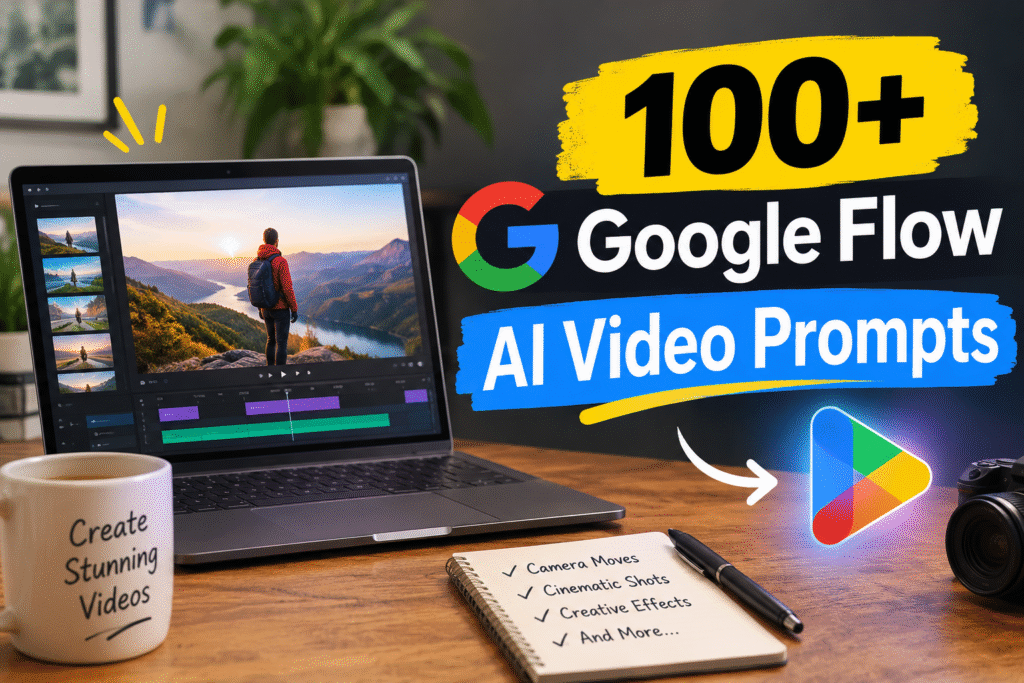
You will learn what Google Flow AI prompts are, how to write one that gives the video model clear instructions, and how to use 100+ camera, motion, and effect phrases. Each section explains one idea in plain language and includes examples you can copy.
What Are Google Flow AI Video Prompts?
A Google Flow AI video prompt is a short written description that tells Google Flow what video to create.
Google Flow is Google’s AI filmmaking tool. You type what you want to see, and the tool generates a video clip from your text, from images you supply, or from a mix of both.
A prompt works like instructions to an AI Model. It describes who or what appears on screen, what happens, where it takes place, how it looks, and how the camera moves. The more clearly you describe these things, the more likely the result matches your idea.
Google’s Flow Help Center describes the tool as a way to animate images and create videos from text prompts, ingredients, frames, and other videos.
How Do Google Flow Prompts Help You Create Better Videos?
Prompts reduce guesswork. Without clear instructions, the model has to fill in every missing detail on its own, and the result can look random or inconsistent.
A good prompt answers the questions a viewer’s eye would otherwise ask:
- Who or what is in the shot? (a woman, a bottle of perfume, a fox)
- What is happening? (walking, rotating, rising through smoke)
- Where is it? (a rainy street, a studio, a forest at dawn)
- What is the light like? (warm sunset, harsh neon, soft window light)
- How does the camera move? (still, slowly pushing in, circling the subject)
- What is the visual style? (cinematic, documentary, product-catalog clean)
Google’s own guidance for Flow asks users to be specific about the subject, action, environment, lighting, and style. Camera movement is not on that official list, but it is one of the most useful additions for video, which is why a shortcut library focused on it can be helpful.
What Makes a Good Google Flow AI Video Prompt?
A useful prompt usually includes these elements:
- Subject: The main person, object, or thing. Name it clearly.
- Action: What the subject does. Use one main action per clip where possible.
- Environment: The setting, including time of day and weather.
- Camera movement: How the camera moves, such as a dolly in or a slow pan.
- Lighting: The direction, colour, and mood of the light.
- Visual style: The look you want, such as cinematic, realistic, or animated.
- Composition: Where the subject sits in the frame, such as close-up or wide shot.
- Motion and atmosphere: Extra movement such as wind, rain, drifting smoke, or falling leaves.
A Simple Prompt Formula
[Subject] + [action] + [environment] + [lighting and style] + [camera shortcut]
Example
A woman in a red coat stands on a rainy Mumbai street at dusk, neon signs reflecting on wet pavement. /dolly in slowly toward her face, soft cinematic lighting, shallow depth of field.
The subject is the woman, the action is standing, the environment is a rainy street at dusk, the lighting is soft and cinematic, and the camera shortcut is /dolly in.
How Do You Write Your First Google Flow Video Prompt?
Follow these steps to write your first prompt.
- Go to Google Flow. Open labs.google/fx/tools/flow and click an existing project or start a new one.
- Decide on one clear scene. Start with a single subject and a single action. A short, simple idea works best for a first attempt.
- Describe the scene in full sentences. Cover the subject, action, environment, and lighting.
- Add one camera shortcut. Choose one from the library, such as /pan right or /slow motion.
- Choose your video settings. Google’s help pages describe settings for aspect ratio, number of outputs, model, and generation length. Check these in the prompt box before you generate.
- Click Generate and review the result. Change one element at a time so you can see what caused a change.
Google’s help pages also describe a Flow Agent, which you can turn on in the prompt box. The Agent can help you brainstorm, refine prompts, and create several variations at once.
What Are the Google Flow Prompt Shortcuts?
The library contains 100+ phrases grouped into 11 categories. Each phrase describes a camera movement, visual effect, or motion. You can paste the phrase into your natural-language prompt to show the model the effect you want.
Important: These are natural-language prompt shortcuts, not verified built-in Google Flow slash commands. Google Flow does not have an official command list that these phrases come from. The / in front of each phrase is just a naming convention that makes the phrase easy to find and copy. Type the phrase as part of a sentence, and don’t expect the tool to respond like a command menu.
Results also depend on the model you pick, the images you supply, and the other instructions in your prompt. A shortcut is a hint, not a guarantee.
The sections below cover all 11 categories. Each table gives the shortcut, what it means, and where it is useful.
Which Cinematic Camera Movement Prompts Can You Use?
Camera movement prompts describe how the camera travels, pans, or focuses. They help you add depth and storytelling to a shot.
| Shortcut | What it means | Best for | |
| 001 | /dolly in | Camera moves smoothly forward toward the subject | Portraits, shop fronts, products |
| 002 | /dolly out | Camera moves backward to reveal more of the setting | Reveals, establishing shots |
| 003 | /orbit | Camera circles the subject | Products, character portraits |
| 004 | /crane up | Camera rises vertically to show more of the surroundings | Dramatic reveals |
| 005 | /tracking shot | Camera moves alongside or follows a moving subject | Walking scenes |
| 006 | /pan left | Camera rotates horizontally to the left | Showing a wider scene |
| 007 | /pan right | Camera rotates horizontally to the right | Showing a wider scene |
| 008 | /tilt up | Camera points gradually upward | Showing height or looking up at a subject |
| 009 | /tilt down | Camera points downward | Revealing objects or details below |
| 010 | /push in | Gradual forward movement, similar to a dolly in | Building tension on a subject |
| 011 | /pull out | Camera moves away to a wider composition | Ending a scene |
| 012 | /truck left | Camera moves sideways to the left, keeping its direction | Side-on movement past a subject |
| 013 | /truck right | Camera moves sideways to the right | Side-on movement past a subject |
| 014 | /rack focus | Focus shifts from one depth to another | Foreground object to a person behind it |
| 015 | /handheld | Adds subtle handheld movement | Documentary or natural feel |
Example:
A street vendor arranges mangoes on a wooden cart in early morning light. /tracking shot alongside the cart, warm natural light, documentary style.
Which Perspective and Lens Effect Prompts Can You Use?
These prompts change the viewpoint and the feeling of the shot, such as making a subject look taller or showing a first-person view.
| Shortcut | What it means | Best for | |
| 016 | /zoom in | Narrows the frame toward a subject | Focusing attention |
| 017 | /zoom out | Widens the frame to show more | Revealing a setting |
| 018 | /low angle | Shows the subject from below | Making someone look powerful |
| 019 | /high angle | Looks down at the subject | Making a subject look small or vulnerable |
| 020 | /extreme close up | Emphasizes a tiny detail | Eyes, fabric texture, product features |
| 021 | /wide angle | Broad view showing the surroundings | Landscapes, group scenes |
| 022 | /macro shot | Emphasizes fine surface detail | Small objects, textures |
| 023 | /over the shoulder | Frames the scene from behind one person | Conversations, reactions |
| 024 | /point of view | First-person perspective | Immersive scenes |
| 025 | /dutch angle | Tilts the horizon for tension | Suspense, unease |
Example:
A chef slices fresh bread on a marble counter in a bright kitchen. /extreme close up on the knife edge and crust, crisp morning light, clean commercial style.
Which Zero-Gravity and Physics Prompts Can You Use?
These prompts describe floating objects and unusual physical motion. They suit fantasy, music videos, and product teasers.
| # | Shortcut | What it means | Best for |
| 026 | /ZeroGravity | Character and loose objects float weightlessly | Surreal scenes |
| 027 | /floating objects | Nearby objects lift and hover at different heights | Dreamlike scenes |
| 028 | /anti gravity | Objects rise against gravity in a stylized way | Stylized or surreal scenes |
| 029 | /object levitation | A selected object slowly lifts and stays in the air | Product or magic-style moments |
| 030 | /weightless rotation | Floating objects rotate gently while suspended | Showcasing shape |
| 031 | /time freeze | Subject is held still while the camera moves | Dramatic moments |
| 032 | /suspended particles | Dust or droplets hang in the air | Atmosphere and light |
| 033 | /debris floating | Small debris drifts as if gravity is gone | Action or explosion aftermath |
| 034 | /wind effect | Hair, fabric, or leaves move in the wind | Natural motion |
| 035 | /slow motion | Action at a slower, deliberate pace | Emphasis on movement |
Example:
A ceramic teacup floats above a sunlit wooden table while steam curls around it. /floating objects with gentle /weightless rotation, soft morning light.
Which Drone and Aerial Shot Prompts Can You Use?
These prompts describe high viewpoints, overhead movement, and sweeping landscape shots.
| # | Shortcut | What it means | Best for |
| 036 | /helicopter view | High aerial view looking down over a location | Cities, coastlines |
| 037 | /drone reveal | Camera rises or moves outward to show a larger landscape | Opening shots |
| 038 | /aerial orbit | Camera circles a subject from above | Landmarks, islands |
| 039 | /bird’s eye view | Shows the scene from directly overhead | Maps, layouts |
| 040 | /top down | Frames objects from a vertical overhead view | Flat lays, food |
| 041 | /flyover | Camera glides over a landscape or street | Travel videos |
| 042 | /descending aerial | Camera moves down from a high view toward the subject | Arriving at a place |
| 043 | /overhead tracking | Camera follows a moving subject from above | Cars, runners, boats |
| 044 | /pull back reveal | Camera pulls away to show the wider environment | Ending a scene |
| 045 | /crane down | Camera descends smoothly to a lower position | Moving into a scene |
Example:
A small fishing village on a rocky coastline at sunrise, waves breaking on the shore. /drone reveal rising over the harbour, soft golden light, cinematic travel style.
Which Transition and Reveal Prompts Can You Use?
These prompts describe how one scene moves into another. They help you join clips in a smooth, creative way.
| # | Shortcut | What it means | Best for |
| 046 | /whip pan | Fast horizontal camera movement that works like a transition | Energetic cuts |
| 047 | /match cut | Transition between visually similar shapes or positions | Creative edits |
| 048 | /morph transition | One object or scene changes into another | Before-and-after |
| 049 | /particle dissolve | Subject breaks into particles and disperses | Mystery, fantasy |
| 050 | /zoom transition | Fast zoom between elements or scenes | Dynamic edits |
| 051 | /reveal transition | Hidden subject or scene gradually appears | Mystery |
| 052 | /focus transition | Focus shift reveals a new subject | Storytelling |
| 053 | /speed ramp | Motion changes from slow to fast, or the reverse | Action edits |
| 054 | /scene transformation | Environment changes while keeping visual continuity | Seasons, time changes |
| 055 | /seamless transition | Connects visual states without an obvious cut | Smooth edits |
Example:
A dry, cracked desert floor slowly turns green as rain falls. /scene transformation from dry to lush, then /seamless transition into a close-up of a blooming flower.
Which Product and Commercial Video Prompts Can You Use?
These prompts suit product adverts, ecommerce clips, and brand videos.
| # | Shortcut | What it means | Best for |
| 056 | /product reveal | Gradually reveals a product with camera movement or lighting | Launch videos |
| 057 | /360 product orbit | Camera circles the product to show all sides | Ecommerce listings |
| 058 | /hero shot | Product as the central focus of a polished composition | Main advert shot |
| 059 | /floating product | Product hovers with subtle rotation | Premium feel |
| 060 | /macro close up | Highlights material, texture, stitching, or finish | Fashion, craft goods |
| 061 | /exploded view | Components shown separated to illustrate build | Technical products |
| 062 | /product spin | Product rotates around its axis | Simple showcase |
| 063 | /cinematic push in | Camera slowly approaches the product | Dramatic commercial |
| 064 | /luxury commercial | Refined composition and premium styling | High-end brands |
| 065 | /light sweep | A band of light moves across the product | Shape and finish |
Example:
A matte black wireless speaker on a grey stone pedestal, soft studio lighting. /product reveal, then /360 product orbit, /light sweep across the surface, luxury commercial style.
Which Creative and Atmospheric Effect Prompts Can You Use?
These prompts add mood, weather, and time-based effects to a scene.
| # | Shortcut | What it means | Best for |
| 066 | /hyperlapse | Fast time-lapse-style sequence with camera travel | City journeys |
| 067 | /timelapse | Accelerated change such as moving clouds or sunset | Skies, crowds |
| 068 | /fog reveal | Subject gradually appears through mist | Mystery scenes |
| 069 | /rain effect | Falling rain and wet surfaces with reflections | Moody city scenes |
| 070 | /smoke reveal | Smoke parts to reveal the subject | Dramatic entrances |
| 071 | /cinematic lighting | Dramatic light direction and contrast | Almost any scene |
| 072 | /light rays | Visible beams of light through haze or windows | Peaceful interiors |
| 073 | /underwater camera | Underwater movement and light distortion | Ocean, pool scenes |
| 074 | /parallax | Foreground and background move at different speeds | Depth |
| 075 | /dramatic reveal | Camera movement and atmosphere combine to reveal a subject | Opening scenes |
Example:
A lone lighthouse on a cliff at dusk, waves crashing below. /fog reveal as the lighthouse emerges, /light rays sweeping across the water, moody cinematic lighting.
Which Character Movement Prompts Can You Use?
These prompts animate people and characters, usually from a reference image. Use them to add natural movement to a portrait or a character shot.
| # | Shortcut | What it means | Best for |
| 076 | /walking toward camera | Character walks naturally toward the camera | Entrances |
| 077 | /walking away | Character moves away into the environment | Endings |
| 078 | /turn around | Character rotates to face another direction | Reactions |
| 079 | /look back | Character turns head or upper body to look behind | Suspense |
| 080 | /hair wind | Hair moves gently in a breeze | Portraits |
| 081 | /fabric simulation | Clothing moves with natural folds | Fashion, costume |
| 082 | /slow head turn | Character slowly turns the head toward something | Emotional moments |
| 083 | /cinematic portrait | Subtle facial, hair, and body motion | Headshots, portraits |
| 084 | /character orbit | Camera circles a character | Hero moments |
| 085 | /natural body movement | Subtle posture shifts and breathing | Calm portraits |
Example:
A young man in a grey jacket stands by a bus stop at night, city lights behind him. /slow head turn toward the camera, /hair wind, /cinematic portrait with soft rim lighting.
Which Nature and Environmental Motion Prompts Can You Use?
These prompts add natural movement to landscapes, plants, water, and weather.
| # | Shortcut | What it means | Best for |
| 086 | /ocean waves | Rolling waves with changing foam | Beach scenes |
| 087 | /flowing waterfall | Continuous downward water movement | Forest scenes |
| 088 | /moving clouds | Clouds drift and change the scene slowly | Sky shots |
| 089 | /swaying trees | Trees and branches move gently | Parks, forests |
| 090 | /falling leaves | Leaves drift through the air | Autumn scenes |
| 091 | /flower blooming | Flower slowly opens its petals | Spring themes |
| 092 | /fire flicker | Flames flicker with subtle smoke | Campfires, candles |
| 093 | /lightning storm | Lightning flashes in a stormy scene | Dramatic weather |
| 094 | /snowfall | Snowflakes fall at different depths | Winter scenes |
| 095 | /rippling water | Ripples and reflections on a water surface | Lakes, ponds |
Example:
A quiet mountain lake surrounded by pine trees in early morning. /rippling water on the surface, /swaying trees on the shore, soft mist.
Which Advanced Cinematic Effect Prompts Can You Use?
These prompts suit stylised action, visual effects, and unusual compositions. Use them sparingly, because they are more dramatic.
| # | Shortcut | What it means | Best for |
| 096 | /bullet time | Slow-motion moment with a camera moving around the subject | Action |
| 097 | /dolly zoom | Camera travels while the lens zooms in the opposite direction | Tension, unease |
| 098 | /miniature world | Scene looks like a small model with shallow depth of field | Playful visuals |
| 099 | /giant scale | Subject appears enormous relative to its surroundings | Surreal scenes |
| 100 | /portal reveal | Reveal through a portal-like opening | Fantasy |
| 101 | /mirror reflection | Emphasizes reflections in a mirror | Fashion, beauty |
| 102 | /glass shatter | Glass breaks into fragments (physical detail may vary) | Action, stylized ads |
| 103 | /energy pulse | Visible wave or pulse of stylized energy | Sci-fi |
| 104 | /light trail | Streaks of light like long-exposure photography | Night scenes |
| 105 | /cinematic loop | Ending connects naturally to the beginning | Looping social content |
Example:
A dancer in a black dress on an empty stage, spotlight above her. /bullet time as she spins, /light trail trailing from her hands, dramatic cinematic style.
Which Bonus Google Flow Prompt Shortcuts Should You Know?
The final group contains useful shortcuts that don’t fit neatly into the other categories.
| # | Shortcut | What it means | Best for |
| 106 | /first person view | First-person perspective | Immersive POV content |
| 107 | /follow shot | Camera follows the subject from behind or alongside | Walking, running |
| 108 | /side profile tracking | Tracks the subject from the side | Portraits in motion |
| 109 | /establishing shot | Shows the location before the main action | Opening a scene |
| 110 | /silhouette reveal | Subject revealed through its outline against a bright background | Dramatic reveals |
| 111 | /backlight glow | Light behind the subject creates a rim-lit look | Portraits, hair |
| 112 | /cinematic pull focus | Focus shifts between two subjects or depths | Dialogue, reveals |
| 113 | /foreground wipe | Foreground object passes across the lens as a transition | Scene changes |
| 114 | /reflection reveal | Subject revealed through a reflection in glass, water, or mirror | Creative reveals |
| 115 | /final hero frame | Finishes on a composed, striking shot of the main subject | Endings |
Example:
A woman in a green raincoat waits at a train platform, reflected in a wet window. /reflection reveal, then /final hero frame as the train lights pass, cinematic evening light.
How Can You Combine Google Flow Prompt Shortcuts?
Combining two or three shortcuts is a practical way to add a richer effect. Choose shortcuts that work together. For example, /dolly in and /cinematic lighting are compatible, while /zoom in and /dolly zoom may compete with each other.
A good rule is one camera move, one effect, and one atmosphere element. Three is usually the limit.
Cinematic Portrait Videos
A jazz singer in a dark velvet dress, standing beside a vintage microphone in a smoky club. /dolly in slowly, /backlight glow, /hair wind, warm amber lighting.
Product Advertisements
A stainless steel water bottle on a wet slate rock, droplets on its surface. /product reveal, /360 product orbit, /light sweep across the metal, clean commercial style.
Landscape Videos
A wheat field in the late afternoon, golden light across the grass. /drone reveal rising slowly, /swaying trees in the distance, /moving clouds overhead.
Character Animations
A child in a yellow raincoat looks up at falling snow in a quiet park. /slow head turn toward the snow, /snowfall, /natural body movement, soft winter light.
Scene Transitions
A city street at night, car headlights moving past. /hyperlapse along the street, /light trail through the frame, then /seamless transition into a sunrise over the same street.
Adding too many unrelated instructions makes a prompt confusing. If you ask for a zoom, a dolly, a whip pan, rain, fog, and a transformation in one clip, the model has to choose between them, and the result may look messy. Keep each clip focused on one main idea.
What Are Some Ready-to-Use Google Flow AI Video Prompts?
These prompts are complete and ready to copy. Change the subject, place, or style to fit your project.
Cinematic Video Prompt
A lone astronaut walks across a red dust plain at sunset, a small rover in the distance. /tracking shot from the side, /establishing shot of the plain, /cinematic lighting with long shadows, film grain look.
Product Video Prompt
A pair of white running shoes on a wooden platform, soft studio light from the left. /hero shot, /product spin slowly, /macro close up on the sole texture, luxury commercial style.
Social Media Video Prompt
A barista pours milk into a latte in a bright cafe with morning sunlight through the window. /macro close up on the pour, /light rays through the steam, vertical framing, short and bright.
Nature Video Prompt
A calm river winding through a green valley, mist rising from the water. /rippling water on the surface, /fog reveal over the banks, /moving clouds above, soft morning light.
Character Animation Prompt
An elderly fisherman in a wool hat sits on a dock at sunrise, looking out at the sea. /slow head turn toward the water, /natural body movement, /fabric simulation on his coat, warm cinematic light.
Aerial Video Prompt
A coastal town of white houses on a cliff above a blue sea. /flyover along the cliff edge, /descending aerial toward the harbour, /ocean waves below, bright midday light.
Atmospheric Video Prompt
A rooftop in Tokyo at night, rain falling on the city below. /rain effect with wet reflections, /parallax between the foreground antennas and the skyline, /light trail from passing trains, moody neon.
How Can You Improve Your Google Flow Video Results?
Improving results is usually a matter of making small, deliberate changes.
- Start simple. Begin with one subject, one action, and one shortcut. Add complexity only after the basic clip works.
- Change one thing at a time. If the camera movement is wrong, change only the shortcut and keep the rest the same. This makes the cause easier to see.
- Describe the camera clearly. Instead of “make it cinematic,” use a specific shot such as “/tracking shot alongside the cyclist.”
- Remove conflicting instructions. Phrases like “static camera” and “/dolly in” contradict each other.
- Use reference images or frames where supported. Google’s help pages describe starting and ending frames, which let you specify how a shot begins and ends. Your text then describes the action between them.
- Use ingredients for consistency. Ingredients are reference images or videos that you add to the prompt. Google’s guide recommends providing subject or product references on a plain or segmented background.
- Use Gemini to refine your wording. Google’s help pages suggest sending your prompt, an image, or a video to Gemini to brainstorm variations.
Google’s own tips for getting started also recommend beginning with a detailed prompt.
What Common Google Flow Prompting Mistakes Should You Avoid?
Most weak results come from a handful of common problems.
- Vague descriptions. “A nice video of a city” gives the model too much freedom. Name the place, time, and mood.
- Conflicting instructions. “Static shot with a whip pan” asks for two opposite things.
- Too many actions in one scene. A single clip with a dance, a storm, a product spin, and a crowd is hard to get right. Split complex ideas into separate clips.
- Unclear camera movements. “Move the camera around” is vague. Use a specific shortcut such as /orbit or /dolly in.
- Inconsistent visual references. If your reference images show different outfits, lighting, or backgrounds, the video may blend them unpredictably. Google’s guide recommends a consistent look and feel across ingredient images.
- Text that contradicts the visuals. Your prompt should match the frames or ingredients you supplied. Google’s guidance says the text should complement the visual inputs, not contradict them.
What Are the Limitations of Google Flow AI Video Prompts?
Prompts give you a lot of control, but they do not give you complete control.
- Results vary. The same prompt can produce different results on different runs or with different models.
- Shortcuts are hints, not exact instructions. A phrase like /dolly in tells the model what kind of movement to aim for. It does not guarantee an exact distance, speed, or framing.
- Models and features change. Google’s help pages list which models support which features. Some features are not available with every model, and some are limited to certain plans or regions.
- Some models are being retired. Google’s Help Center states that on December 5, 2026, Veo 3.1 Fast, Veo 3.1 Quality, and Omni Flash 1.1 will be retired. Google recommends Omni Flash 1.2 or Veo 3.1 Lite for future projects.
- Video length depends on the model and your plan. Google’s model page lists different lengths for different models and subscription levels, so check the current limits before you plan a project.
- Credit costs vary. Google’s help documentation says to check the latest credit costs in the prompt box before generating.
FAQs
What is the best prompt format for Google Flow AI?
A clear sentence that covers the subject, action, environment, lighting, and style works well. Add one camera shortcut at the end. Google’s help guide recommends being specific about these elements.
Do Google Flow slash prompts work as commands?
No. The shortcuts in this library are natural-language phrases. They are not official Google Flow commands, buttons, or special syntax. You include them in a normal sentence to describe the effect you want.
How do you create cinematic videos in Google Flow?
Describe a specific subject and action, set a clear environment and light, and add a camera shortcut such as /dolly in or /cinematic lighting. Keep the scene focused on one idea.
Can you use camera movement prompts in Google Flow?
Yes, you can describe camera movement in your prompt. Whether the result matches your description depends on the model and the rest of your instructions.
Can you use reference images with Google Flow?
Yes. Google’s Flow Help Center describes using frames (a start image and an end image) and ingredients (reference images or videos) in your prompt. Availability depends on the model and region, so check the current model page.
How do you make AI-generated videos more consistent?
Use the same reference images across clips, keep your visual style consistent, and use clean backgrounds for subject references. Google’s guidance recommends avoiding conflicting guidance between your text and your visual inputs.
Can beginners use Google Flow prompts?
Yes. Start with a simple scene, one action, and one camera shortcut. You can improve your skills by changing one element at a time.
Why does Google Flow sometimes produce different results from the prompt?
AI video models interpret language, and they can fill gaps in unclear prompts. Results also depend on the model you choose, the reference images you add, and the settings you pick. Clear, focused prompts usually give more predictable results.
Is Google Flow AI Free to Use?
Google Flow AI offers limited free access, allowing users to try its AI video generation features with available credits. However, advanced features and higher usage limits require a paid Google AI subscription.
How Can You Start Creating Better Videos With Google Flow?
Start with one simple scene. Pick a single subject, one action, and one camera shortcut from the library. Generate a clip, see what works, and change one thing at a time.
Once a basic prompt works, try adding a second shortcut, such as a lighting effect or a transition. Then build a small series of clips with the same subject and style. Over time, you will learn which phrases your model responds to best, and you will spend less time guessing.